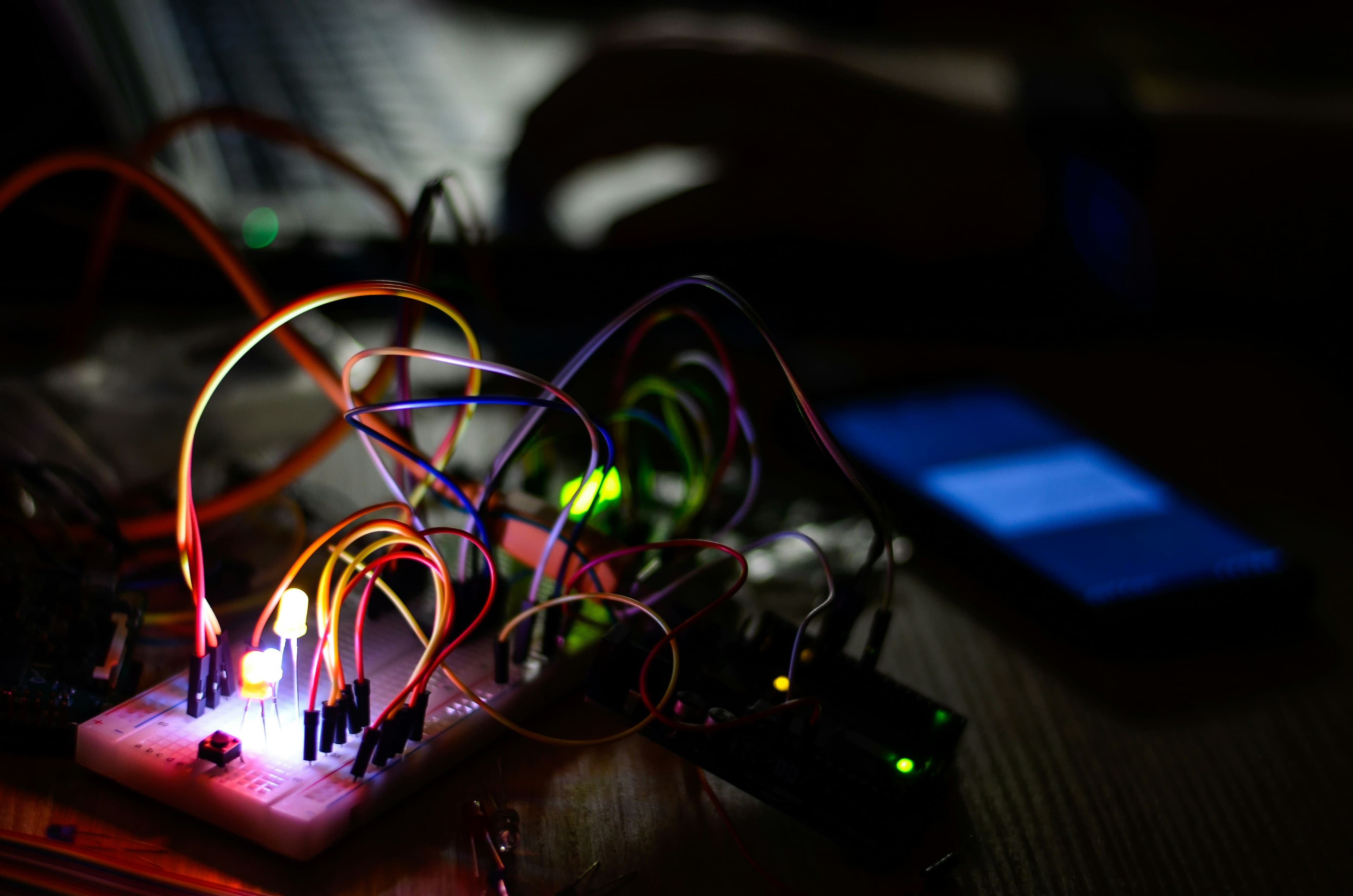
Traffic Light Simulator
Learning Objectives
- Understand the basic principles of traffic signal control
- Wire LEDs with current-limiting resistors on a breadboard
- Write an Arduino sketch with
delay()to sequence LED states - Relate real-world timing constraints to embedded programming
Overview
The Traffic Light Simulator is the classic first Arduino project. You will build a miniature traffic signal that cycles through Green → Yellow → Red using three LEDs and an Arduino Uno. Along the way you'll learn how to protect LEDs with resistors, write a timed sequence in C++, and debug your circuit with a multimeter.
Good to Know
Real traffic lights use programmable logic controllers (PLCs) with much more complex state machines that account for pedestrian crossings, emergency vehicle overrides, and adaptive timing based on traffic density. Your Arduino sketch is a simplified model of this same idea.
Components Required
| Component | Quantity | Specification |
|---|---|---|
| Arduino Uno R3 | 1 | ATmega328P, 5 V logic |
| Red LED | 1 | 5 mm, standard |
| Yellow LED | 1 | 5 mm, standard |
| Green LED | 1 | 5 mm, standard |
| 220 Ω Resistor | 3 | ¼ W, 5% tolerance |
| Breadboard | 1 | Half-size (400 tie points) |
| Jumper Wires | 6+ | Male-to-male, 20 cm |
| USB Cable (Type-B) | 1 | For upload and power |
Circuit Diagram
Connect each LED anode (+) through a 220 Ω resistor to the corresponding Arduino digital pin:
- Red LED → Pin 8
- Yellow LED → Pin 9
- Green LED → Pin 10
Connect all LED cathodes (−) to the breadboard's GND rail, which connects to Arduino's GND pin.
Resistor Color Code Challenge
Before wiring, identify each 220 Ω resistor using the color code: Red – Red – Brown – Gold. Use a multimeter in resistance mode to verify the value is between 209 Ω and 231 Ω (5% tolerance band).
Arduino Sketch
// Traffic Light Simulator
// Pins
const int RED_PIN    = 8;
const int YELLOW_PIN = 9;
const int GREEN_PIN  = 10;

// Timing (milliseconds)
const int GREEN_TIME  = 5000;
const int YELLOW_TIME = 2000;
const int RED_TIME    = 5000;

void setup() {
  pinMode(RED_PIN,    OUTPUT);
  pinMode(YELLOW_PIN, OUTPUT);
  pinMode(GREEN_PIN,  OUTPUT);
}

void loop() {
  // GREEN phase
  digitalWrite(GREEN_PIN,  HIGH);
  digitalWrite(YELLOW_PIN, LOW);
  digitalWrite(RED_PIN,    LOW);
  delay(GREEN_TIME);

  // YELLOW phase
  digitalWrite(GREEN_PIN,  LOW);
  digitalWrite(YELLOW_PIN, HIGH);
  delay(YELLOW_TIME);

  // RED phase
  digitalWrite(YELLOW_PIN, LOW);
  digitalWrite(RED_PIN,    HIGH);
  delay(RED_TIME);
}
Good to Know
delay() blocks the entire microcontroller — the Arduino cannot do anything else while waiting. In a production traffic controller, engineers use non-blocking timers (via millis()) so the processor can handle pedestrian buttons and sensor inputs simultaneously.
Testing Your Circuit
- Open Arduino IDE and paste the sketch above.
- Select Tools → Board → Arduino Uno and the correct Port.
- Click Upload (→ arrow).
- Observe the LED sequence: Green (5 s) → Yellow (2 s) → Red (5 s) → repeat.
Timing Experiment
Modify GREEN_TIME to 2000 and RED_TIME to 8000. Re-upload and observe how the light cycle changes. Discuss: why do real intersections use longer red phases on main roads?
Troubleshooting
| Symptom | Likely Cause | Fix |
|---------|-------------|-----|
| LED doesn't light | LED inserted backwards | Flip the LED (longer leg = anode/+) |
| All LEDs stay off | Wrong pins in code | Check const int values match wiring |
| LED very dim | Resistor too high | Use 220 Ω, not 2.2 kΩ |
| Upload fails | Wrong port selected | Tools → Port → select your COM port |
Extension Challenges
Pedestrian Button
Add a push button to pin 2. When pressed, extend the RED phase by 5 seconds to simulate a pedestrian crossing request. Use digitalRead() inside the loop.